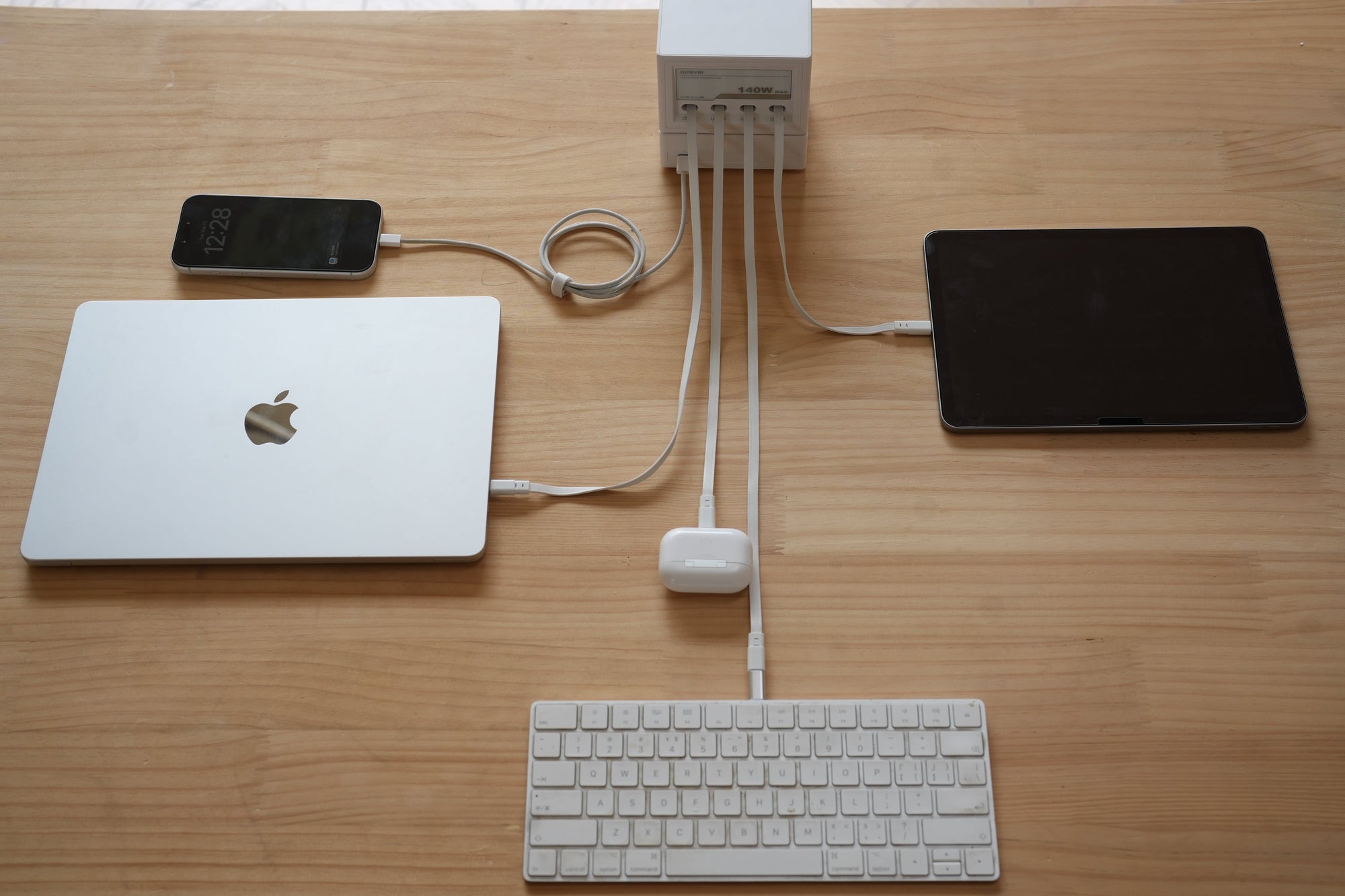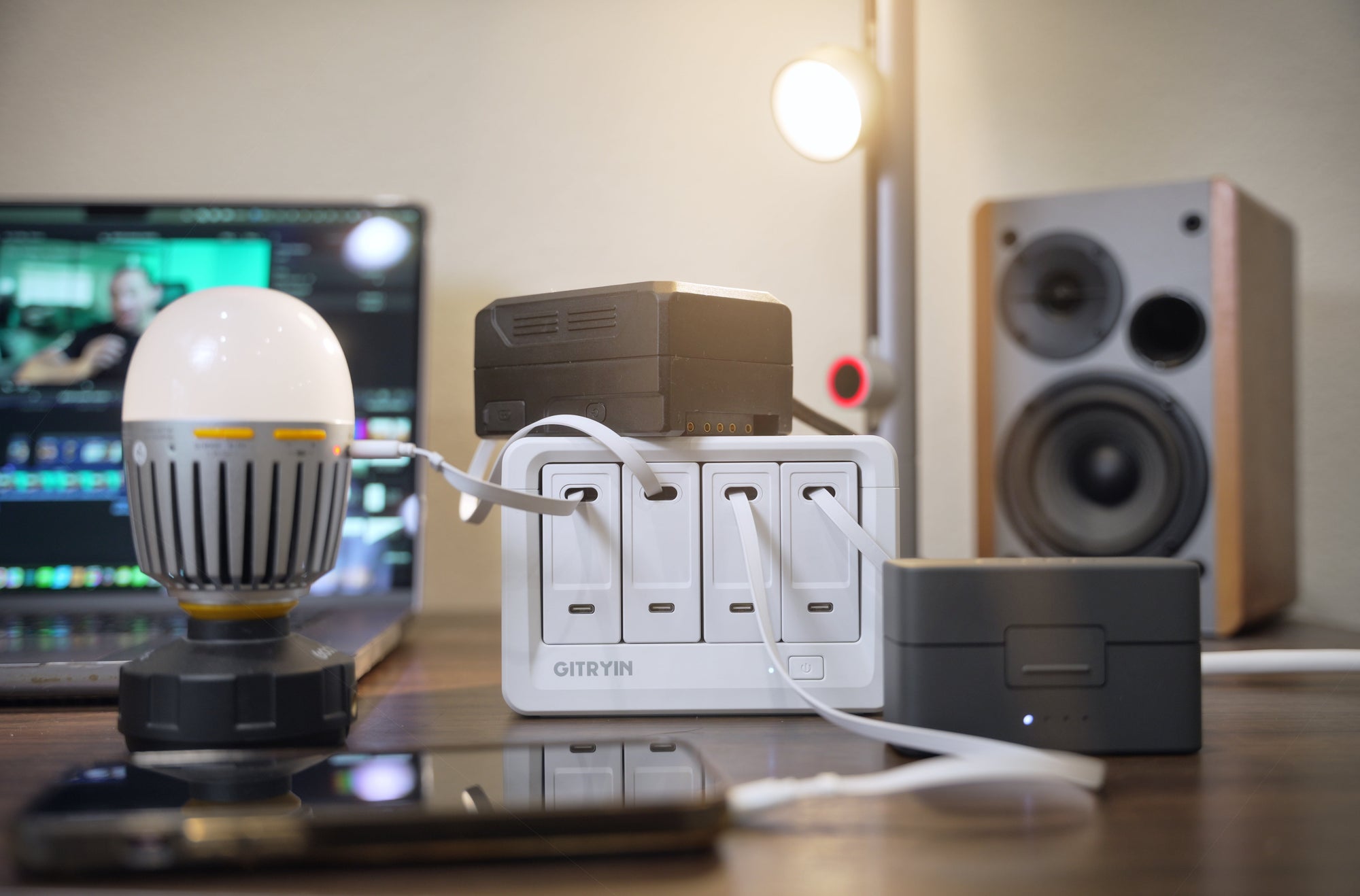

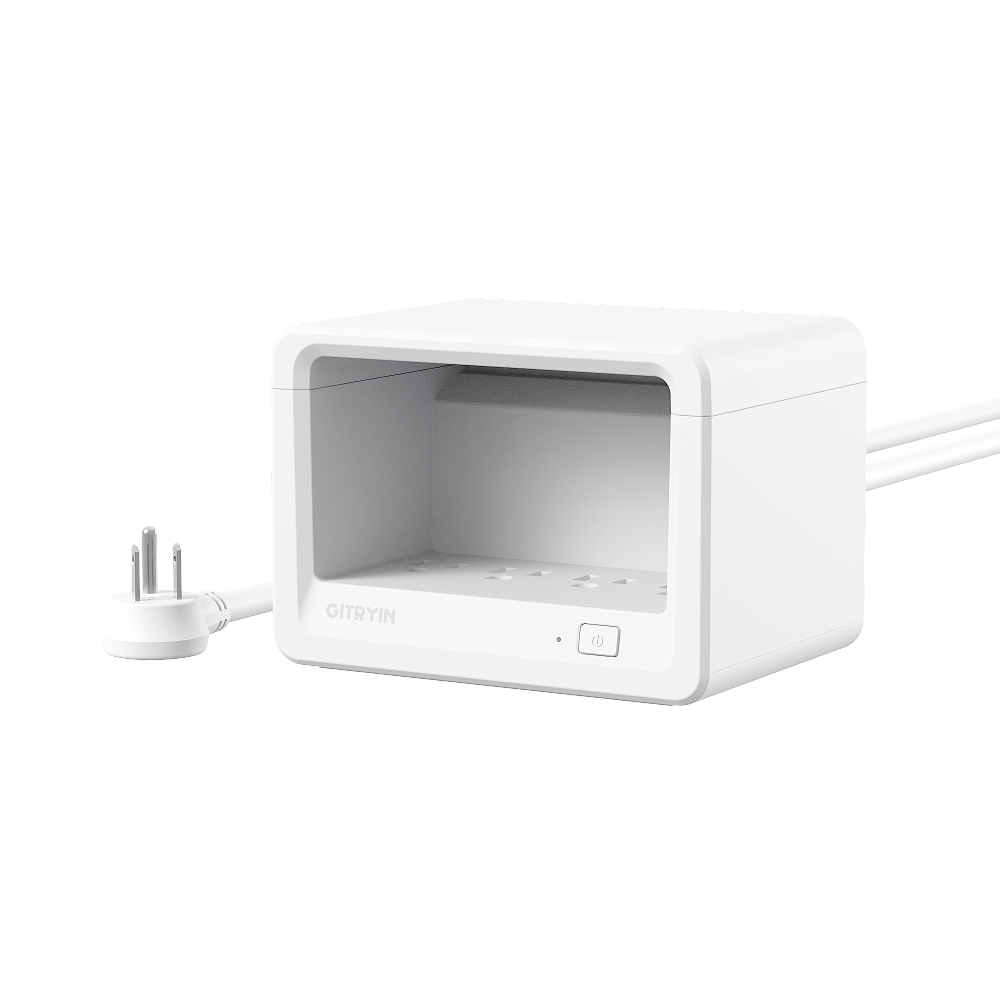


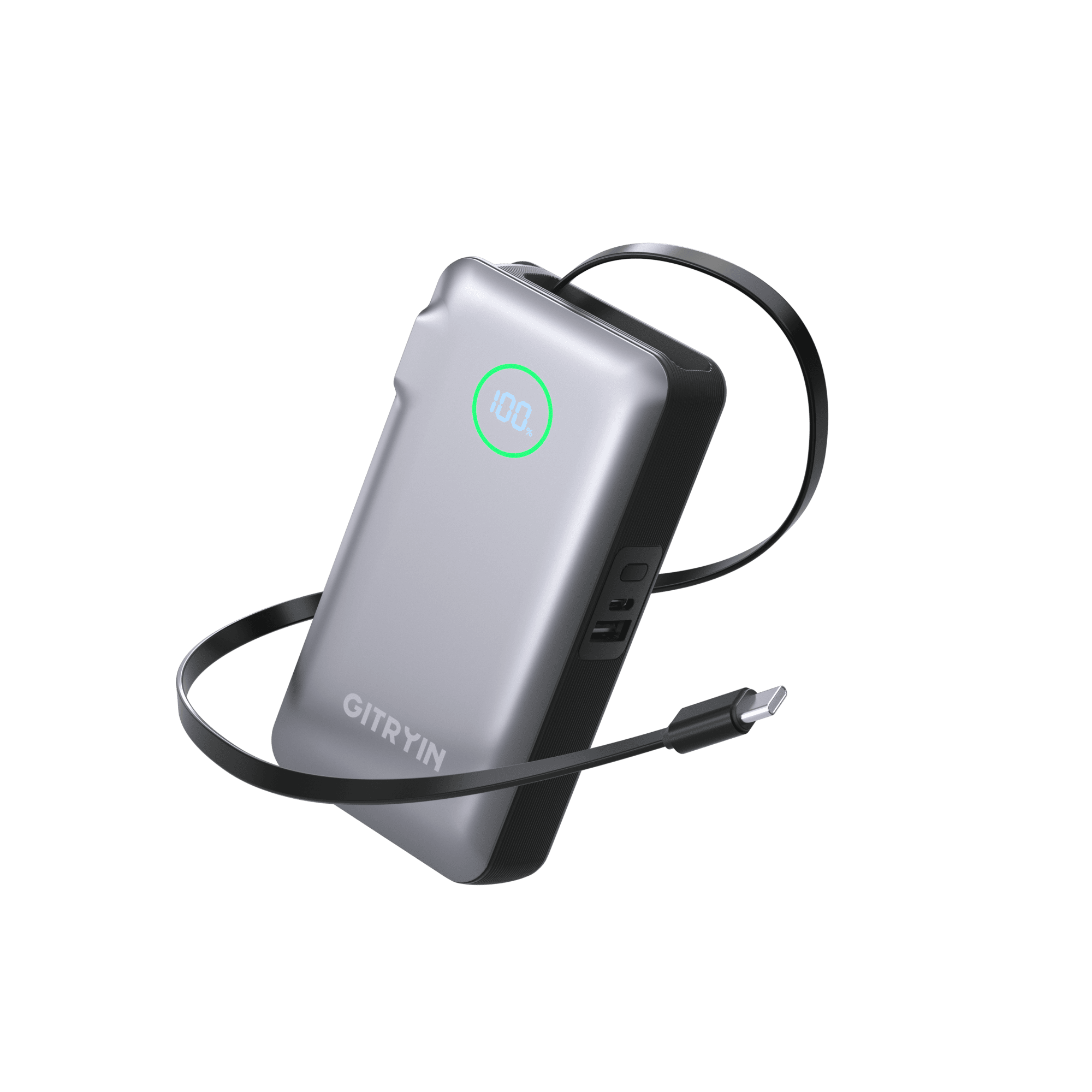
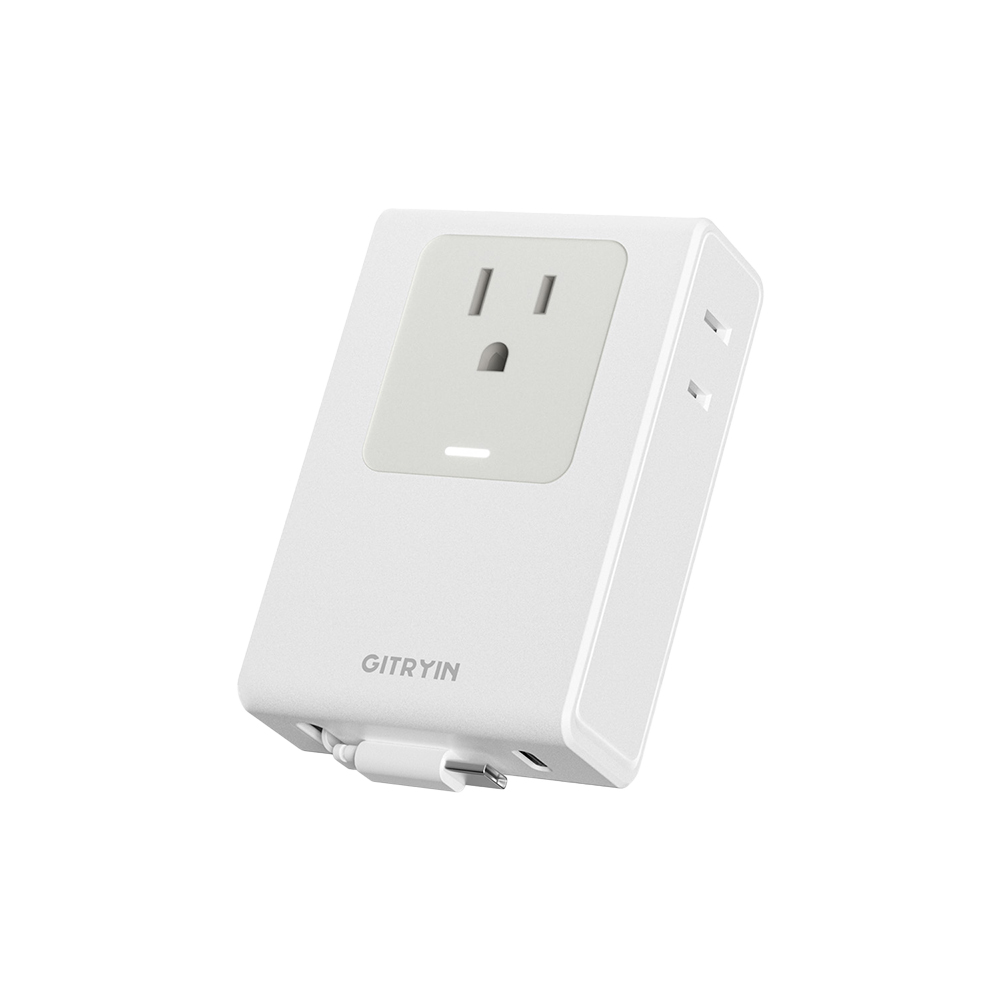

A laptop, a phone, and earbuds may all need charging at your desk, but they don’t need the same things from a charger. Add a monitor or desk lamp, and you also need to decide whether AC outlets belong in the same setup.
The easiest way to choose a multi-device charging station is to separate what it must do from what would make it nicer to use. First, rule out options that cannot support your devices. Then compare the remaining choices for power, cable convenience, flexibility, and total cost.
This guide uses Gitryin desktop charging stations as examples. It is a specification-based buying guide, not a lab-tested ranking of every charging station on the market.
Step 1: Define Your Charging Needs
Before opening several product pages, write down what you actually expect to plug in. A short list will do more for your decision than starting with the biggest wattage number.
List What You Charge at the Same Time
Think about a normal workday or evening. Does your laptop charge while your phone and earbuds are connected, or do those devices take turns? Count simultaneous connections, not every rechargeable device you own.
For each main device, check the manufacturer’s charging requirements and the connections it uses. Decide whether you need its recommended charging performance during use or whether slower charging between uses is acceptable. That distinction matters most for the laptop you rely on throughout the day.
If the specifications are unfamiliar, our USB charging basics guide explains wattage, charging standards, and power sharing before you start comparing models.
Separate Must-Haves from Preferences
|
Question |
What to write down |
|
What must charge together? |
Your usual device combination and required charging performance |
|
Which connections do you need? |
Connector types, charging cables, and any dedicated charging accessories |
|
Do you need AC outlets too? |
Monitors, lamps, or other equipment you want to connect |
|
Where will the station sit? |
Available surface space, outlet position, and cable reach |
|
What might change? |
Devices you expect to add or charging modules you may want to replace |
|
What can you spend? |
A spending limit for the complete usable setup |
Enough power for your working laptop may be a must-have. Retractable cables may be a preference because they reduce finding and putting away loose cables. If a cable cannot reach the device, though, reach is a hard requirement, not a small compromise.
Treat a firm budget ceiling the same way: exclude a setup you cannot afford. Compare value among the affordable options later.
Step 2: Find Stations That Meet Your Needs
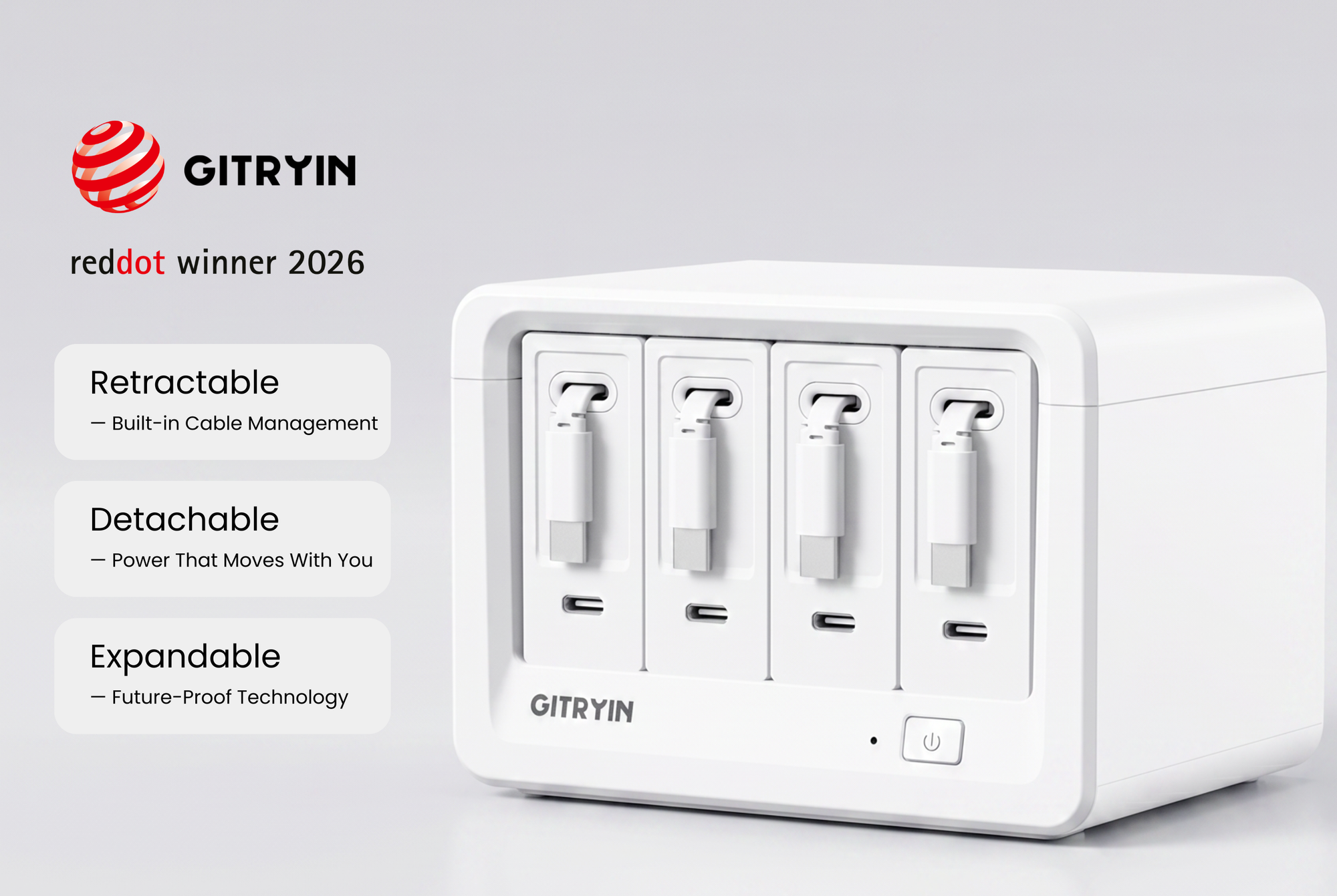
Start with the connections and power your devices need. If you also want to plug in a monitor or desk lamp, choose a station with AC outlets. For USB devices alone, an integrated USB charging station may be enough.
The table below compares USB-C configurations. Device categories are a starting point: the station still needs to support your device’s charging requirements, especially when several devices are connected.
|
Charging station |
Connections |
Charging power |
Typical device setup |
|
4 retractable USB-C cables + 4 USB-C ports |
Per module: up to 40W through either output alone |
Phones + tablets + earbuds, with AC-powered desk equipment |
|
|
4 retractable USB-C cables + 4 USB-C ports |
Per module: cable up to 65W; USB-C port up to 18W |
Compatible 65W-class laptop + phone + tablet, with AC-powered desk equipment |
|
|
3 retractable USB-C cables + 3 USB-C ports |
Per module: up to 40W through either output alone |
Phone + tablet + earbuds, with AC-powered desk equipment |
|
|
3 retractable USB-C cables + 3 USB-C ports |
Per module: retractable cable up to 65W |
Compatible 65W-class laptop + phone + earbuds, with AC-powered desk equipment |
|
|
Up to 5 charging modules, each with a retractable cable and an additional USB-C port |
Compatible 40W, 65W, and 140W modules |
Multiple laptops + everyday devices, with suitable modules installed |
|
|
4 retractable USB-C cables + 1 USB-C port |
Up to 140W with one compatible device |
Laptop + phone + tablet + earbuds, without AC-powered equipment |
AC counts refer to the base; installed modules and larger plugs may reduce the number of freely accessible outlets. The modular cooling station’s connection count depends on the selected bundle. V/A figures above show relevant maximum-output profiles, not every supported charging mode.
The 40W module provides up to 40W through either output when used alone. Connect two devices to the same module, and each receives up to 15W.
The 65W module has a higher-output retractable cable and a lower-output USB-C port. Used alone, they support up to 65W and 18W respectively. Together, the allocation becomes 45W through the cable and 12W through the port. To preserve the laptop’s 65W maximum, connect the other device to a separate module.
Nexus uses one integrated charging system rather than independent modules. Its 140W single-device maximum changes when more devices connect; with all five connections used, the allocation is up to 65W for the main device and 18W for each of the other four. Connect the highest-power device to the designated C1 cable for that arrangement.
Check Size and Cable Reach
Place the station where its cables can reach your usual device positions without crossing your mouse or writing space. Allow room for plugs and cable movement, not just the unit itself.
A vertical model may suit your layout, but shape alone does not determine usable space. Rule out any configuration that lacks a required connection, cannot provide the power you need, or cannot reach your devices comfortably.
Step 3: Compare Your Shortlist
Once the basics are covered, compare the differences you will notice every day. Use the same four questions for each shortlisted configuration.
|
Criterion |
What to compare |
|
Power capability |
How comfortably the exact configuration supports your devices together, including useful headroom |
|
Cable management |
Cable reach, connector placement, retractable or separate cables, and the effort of connecting and tidying up |
|
Configuration flexibility |
Which compatible chargers or modules can be removed, replaced, or mixed, and what is available now |
|
Price and value |
The complete setup cost relative to the charging capability and convenience you will use |
More cables do not automatically mean better cable management. Four connections on the wrong side of the desk may be less useful than fewer connections placed within reach. Likewise, modularity only adds value if the available modules fit a change you actually expect to make.
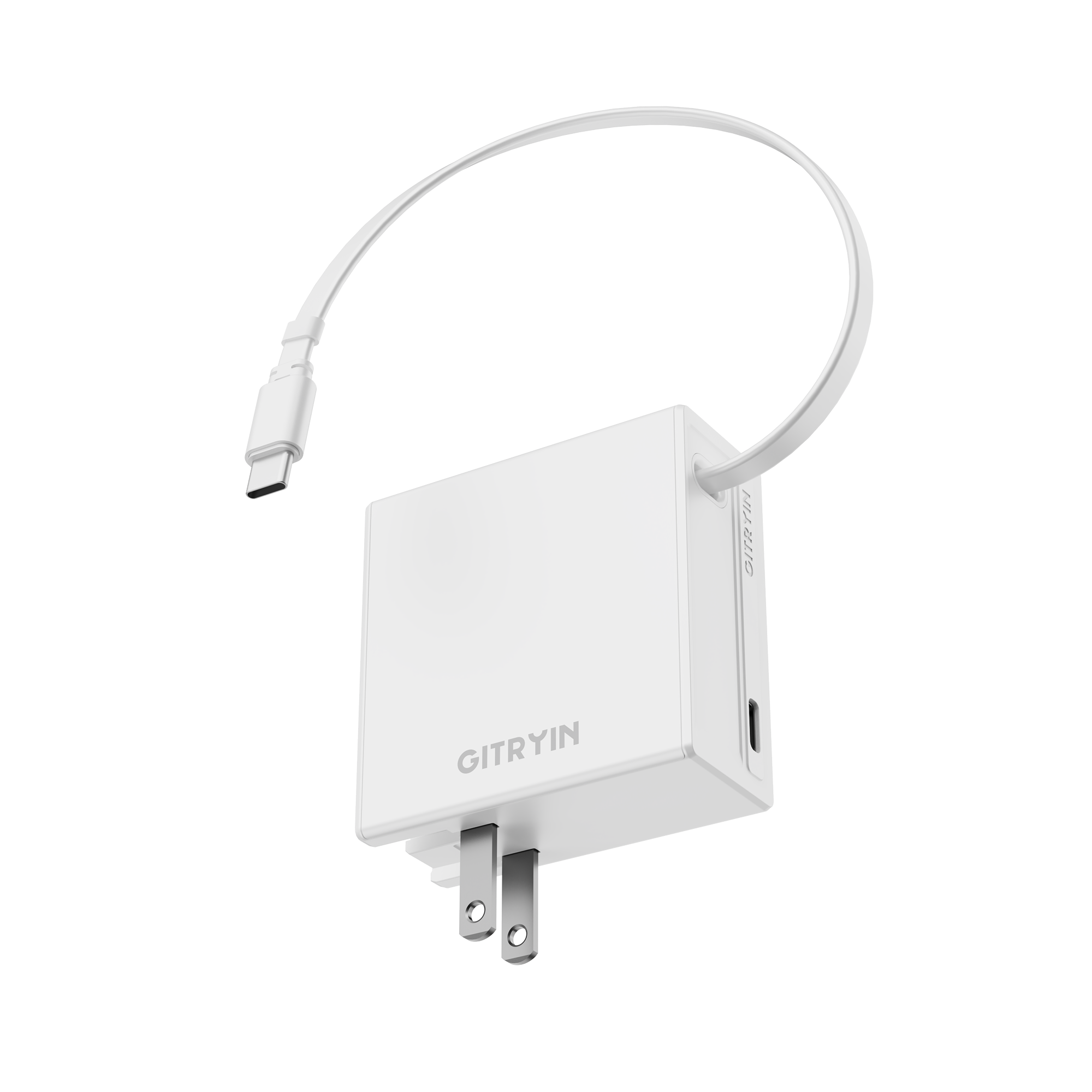
The 12-in-1 Combo and ModDock families also use detachable chargers; they should not be treated as permanently fixed simply because they are sold as bundles. Compare the supported modules and exact bundle, rather than giving all flexibility credit to one product name.
Use a Simple Scorecard to Compare
You can give each confirmed option a score from 1 to 5 for each criterion: 1 means major compromises, 3 means adequate, and 5 means a very good fit. Use 2 and 4 for the steps between them. Write a short reason beside each score so the numbers remain tied to your setup.
Leave unknown details unscored until you can confirm them. Missing an essential feature is a reason to exclude a product, not something to average away with stronger scores elsewhere.
These are personal comparison scores, not test results. Keep the same requirements and scoring definitions across the shortlisted options.
Step 4: Match Your Priorities
For a laptop-heavy setup, give the most attention to the power the laptop receives while the other devices are connected. For a small desk, cable reach and the usable space around the unit may matter more than extra connections you rarely use.
If you expect your devices to change, compare available replacement modules and their cost. If your setup is stable, a simpler arrangement may already do the job. For a budget-focused choice, compare the full cost of suitable configurations, not the lowest advertised starting price.
If you prefer a weighted scorecard, the following starting points show how priorities can differ. They are optional editorial examples, not an industry standard or measured product rankings.
|
Your priority |
Power |
Cable management |
Flexibility |
Price and value |
|
Everyday multi-device use |
35% |
25% |
15% |
25% |
|
Laptop or higher-power devices |
50% |
15% |
10% |
25% |
|
Tidy desk or limited space |
25% |
40% |
10% |
25% |
|
Changing devices or future additions |
30% |
20% |
30% |
20% |
|
Lowest suitable setup cost |
30% |
15% |
5% |
50% |
Multiply each criterion score by its weight as a decimal, then add the four results. The total remains on a 1–5 scale. No product ranking is supplied here because the scores depend on your requirements and the exact configurations being compared.
If you change only the importance of the same requirements, you can keep the underlying scores. If the device list, desk arrangement, or budget changes, screen and score the options again.
Step 5: Check Before You Buy
Compare the exact bundle in your cart with the shortlist you made—not just the product family name. Check the included chargers and cable types, the relevant multi-device output, usable outlets, dimensions, and total cost. Include any modules or separate cables needed to make the setup work.
You can browse Gitryin’s desktop charging solutions to compare the current options. If two suitable choices are close, come back to the routine you want to improve: charging the laptop during work, keeping a phone cable within reach, or making room for several devices in one place.