



Your desk looks reasonably tidy when you start work. By lunchtime, your phone is charging beside the keyboard, your earbuds are plugged in on the other side, and a spare cable has worked its way under your notebook. When you pick up the phone, its charging cable slides behind the desk.
The problem isn’t necessarily that you own too many devices. It’s that the devices move throughout the day, while their cables have no clear place to stay.
Good desk cable management needs to work during those everyday moments. Start with where you use your devices, keep charging connections close by, and make unused cable easy to put away.
Why Do Charging Cables Keep Taking Over Your Desk?
A monitor cable usually has a straightforward job: connect it, route it, and leave it alone. Charging cables are different. Your phone comes and goes, your earbuds need a top-up between calls, and your laptop may leave the desk at the end of the day.
The clutter often comes from three recurring problems:
· Devices move, but their cables have no consistent home. You unplug your phone and leave the cable where you last used it.
· Loose connectors fall out of reach. The next charge starts with retrieving a cable from behind the desk or under other items.
· Extra cable length takes up working space. The cable reaches your device, but the unused length spreads across the desktop.
The awkward part is that you need different lengths at different moments. Your phone may sit beside the keyboard, then move into your hand when a call comes in. A cable fixed neatly in place can become inconvenient; one left loose can spread across the desk.
Fixed cables need a route. Everyday charging cables need room to move. Adding a power strip makes room for more charging bricks, but it doesn’t solve that difference. Bundling everything together can also make the connections you use most harder to reach.
Before rearranging anything, identify the connections that stay plugged in, those you use throughout the day, and those you only need occasionally. You don’t need to manage all three in the same way.
Where Should Your Charging Setup Go?
Start with your devices, not an empty corner where a charger happens to fit. Keep your main work area usable first, then arrange charging around it.
Keep Your Main Work Area Clear
Put your phone where you normally check it during work and your tablet where you can comfortably use it. Look at the route a charging cable would take to each spot. If it crosses your mouse space or stretches over a notebook, adjust the charging position before securing anything.
A charging spot doesn’t need a separate shelf or a large organizer. It may simply be the side of the desk where your phone and earbuds already sit.
For a small desk setup, don’t give occasional devices permanent space in the middle of the work surface. A tablet you use throughout the day needs an accessible connection; one that only charges overnight may not need to sit beside your keyboard at all.

Put the Charger Where the Cables Can Reach
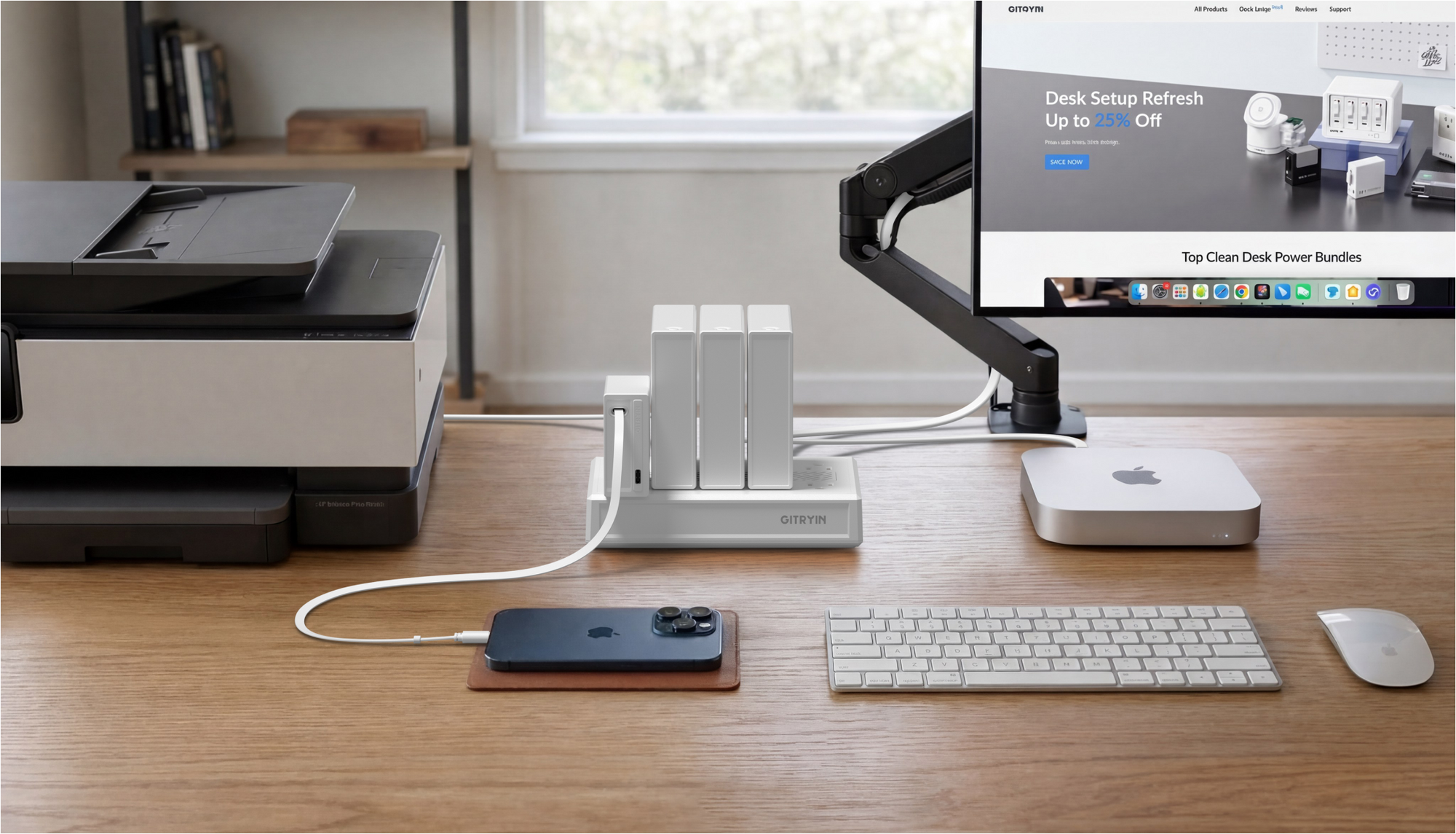
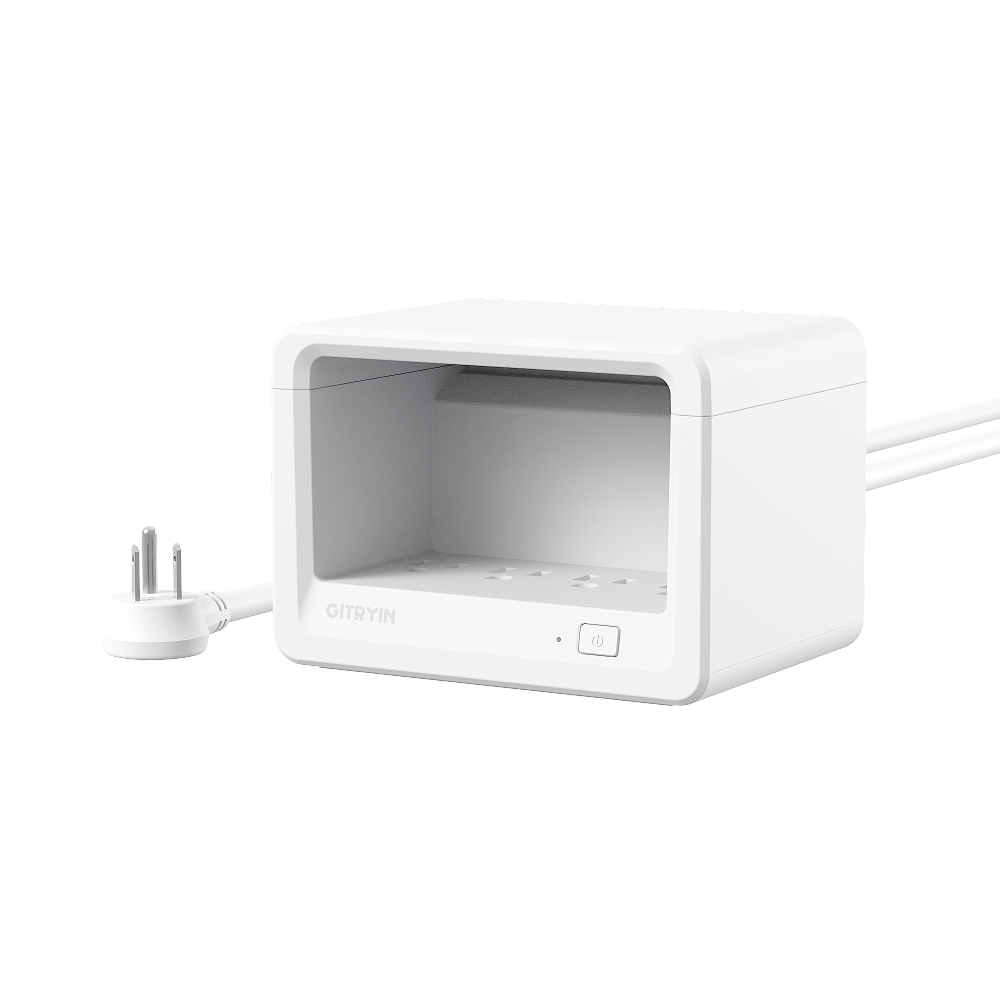
An outlet under the desk doesn’t mean every charging connection needs to stay there. A desktop charging station with a power cord can sit nearer your devices, provided the cord reaches the outlet and the unit has a stable, suitable surface.
Before attaching clips or mounting anything, try a normal charging session. Put your phone beside the keyboard, pick it up, and move your laptop to its usual position. The cables should reach without pulling tight or crossing the space you use for work.
Hiding the charger behind a monitor may look tidy, but it can be awkward if you reach for it several times a day. Choose a position that works through those movements, not just one that hides the unit.
How Should You Manage Cables You Use Every Day?
With the layout settled, keep daily connections easy to grab, route fixed cables away from the work surface, and store occasional ones nearby. Then look at how much cable handling your everyday charging routine still involves.
Keep Everyday Charging Cables Within Reach
For a separate charging cable, a suitable clip near the side or back edge of the desk can stop the connector from slipping behind it. Place the clip near the device’s usual charging spot, with enough free cable to use the device comfortably. Choose one that suits the cable thickness and desk finish.
The aim isn’t to pin every inch down. It’s to keep the end you reach for where you can find it.
Give Fixed Connections Their Own Route
Monitor power, a fixed dock connection, and other cables that rarely move can follow the back or underside of the desk. Depending on the furniture, clips, a cable tray, or reusable straps can help hold that route.
Keep these separate from cables you regularly remove. Allow for normal movement and access to connectors, follow accessory mounting instructions, and keep chargers ventilated rather than enclosing them just to hide them. A USB charging station handles charging; monitor and data connections still need their own route.
Store Occasional Cables Nearby
A cable used once a week doesn’t need a permanent place across your desk. Keep it in a nearby drawer or small container. If several people share the charging spot, agree on which cables stay there and where spare ones go. A clear return spot saves everyone from searching through the whole setup.
Keep Charging Cables Ready—and Put Them Away Easily
Clips and trays help keep cables in place. But if you connect and disconnect the same devices throughout the day, you still have another job: pulling out enough cable to use the device, then putting the extra length away again.
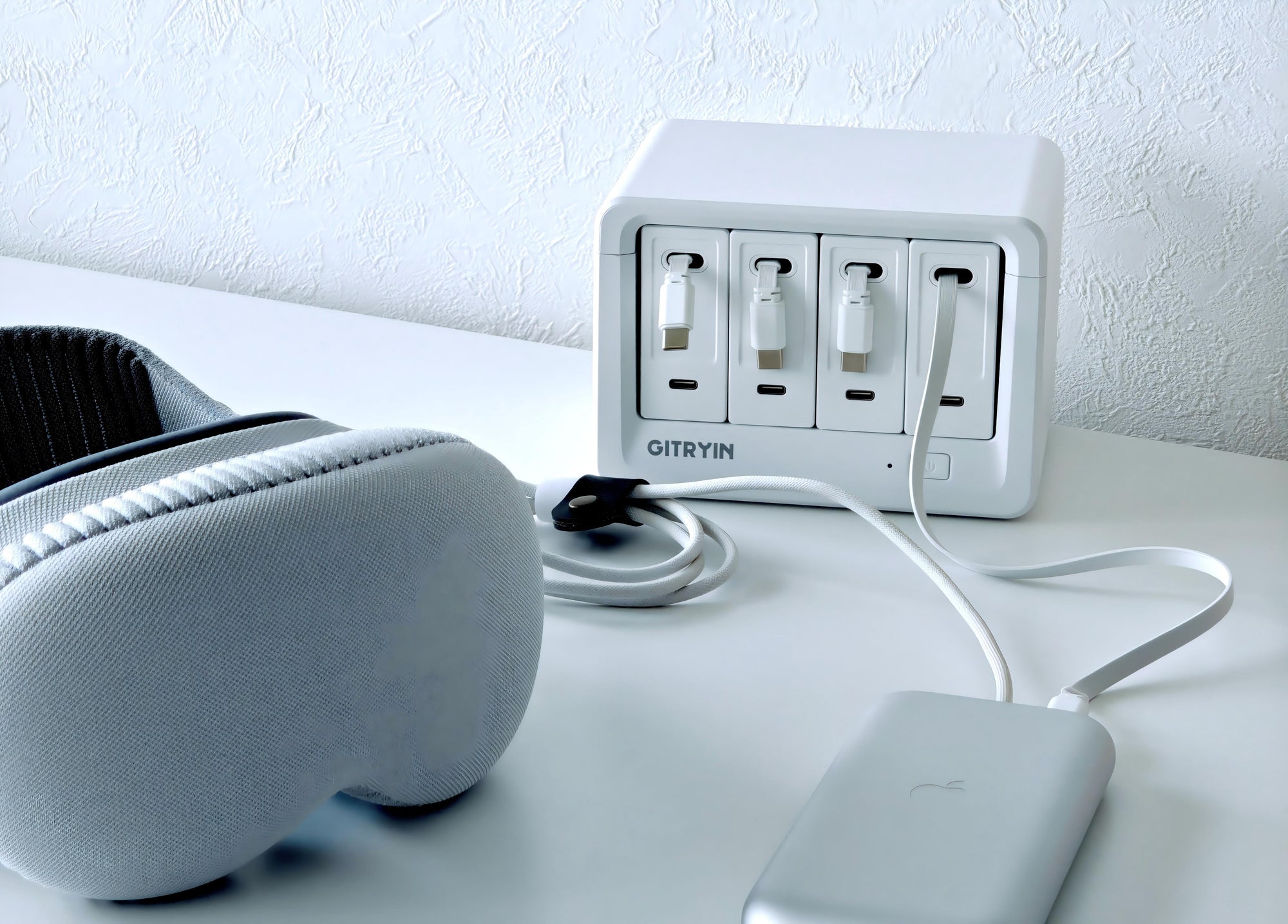
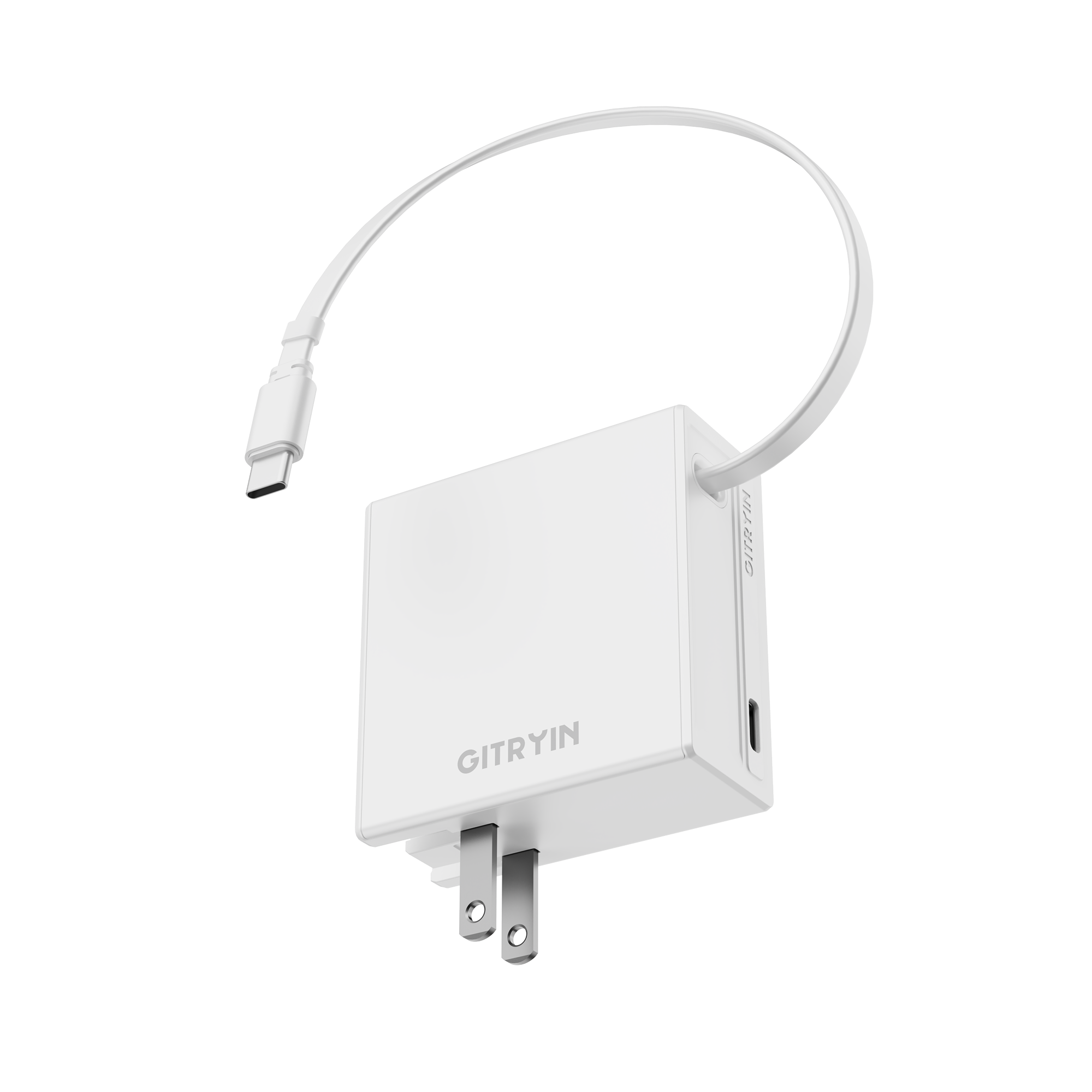
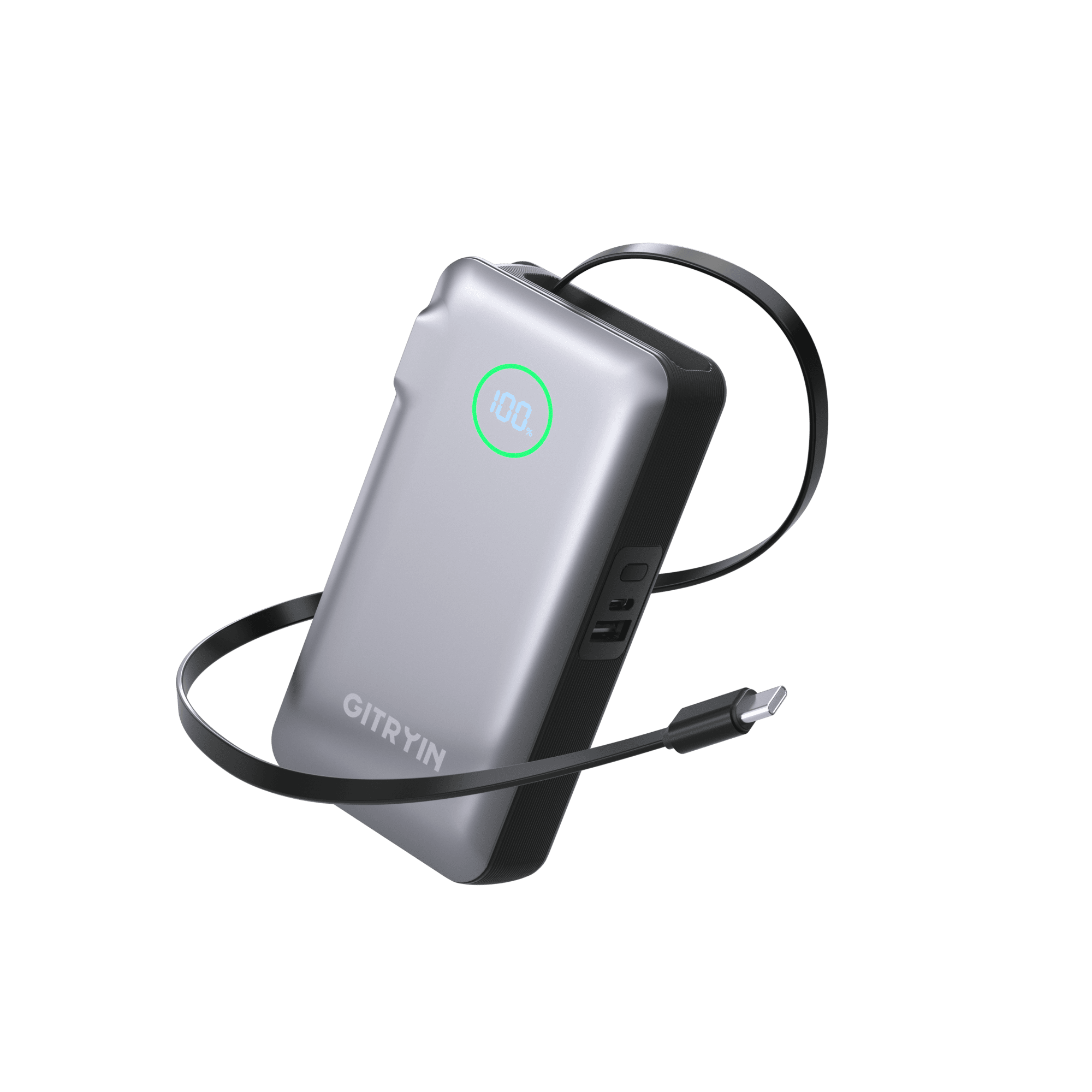
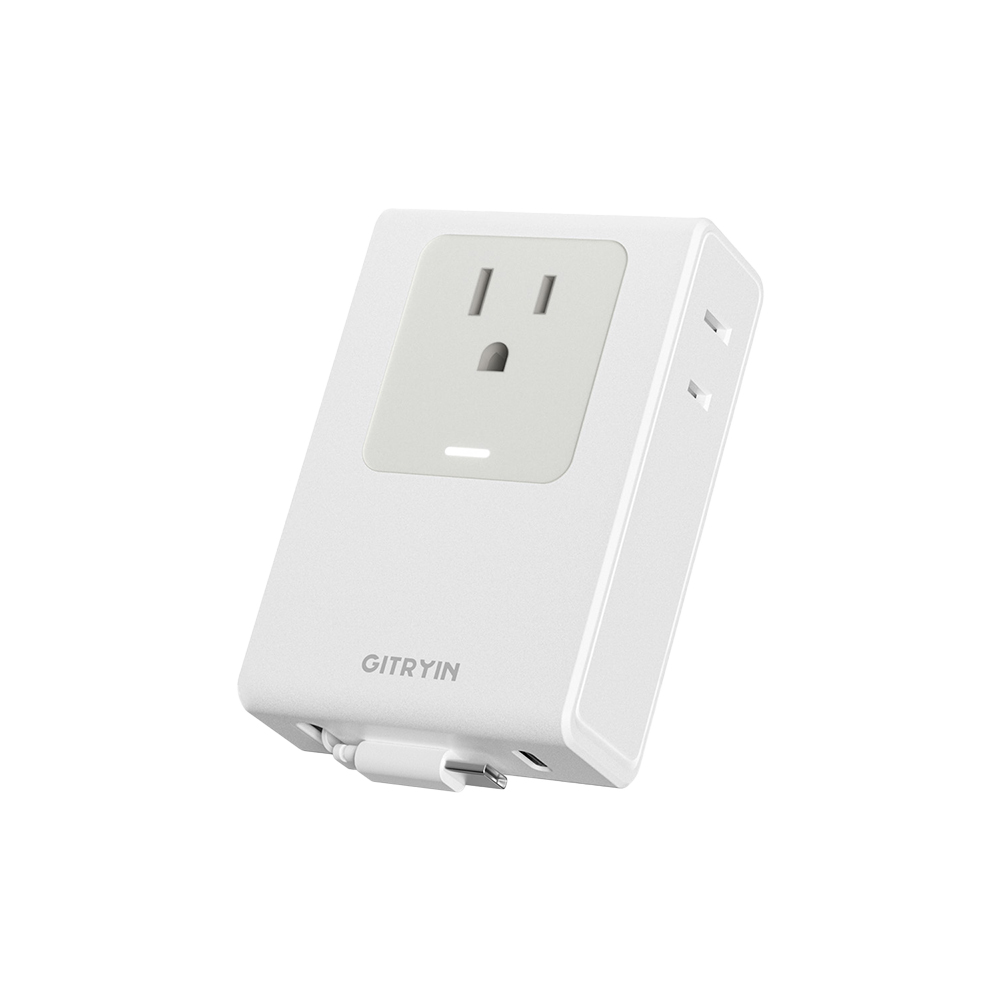
A charging station with built-in retractable cables brings those steps into one setup. The connection stays with the charger, and unused cable retracts into the unit instead of remaining loose across the desk.
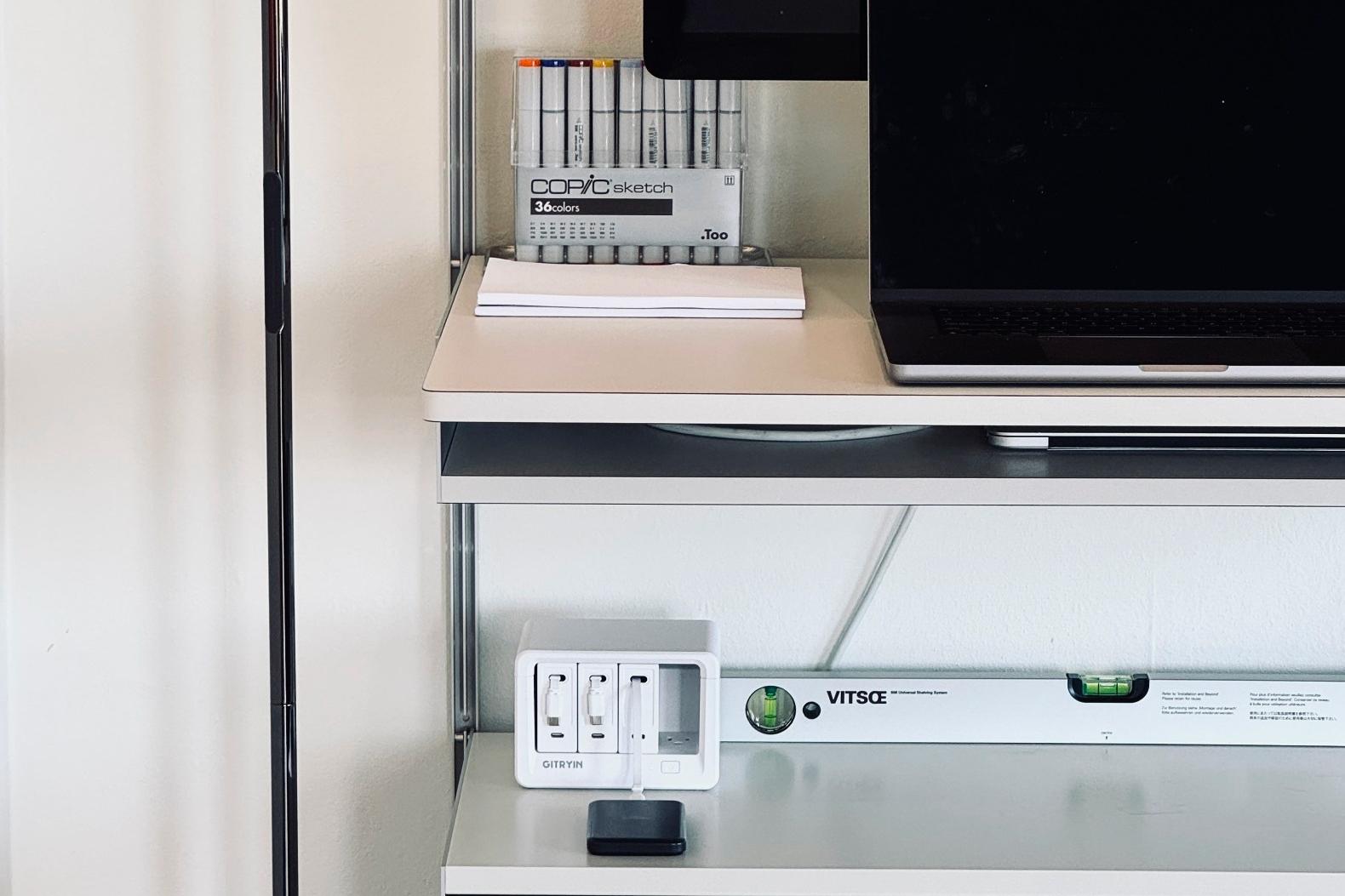
The Gitryin Nexus keeps four retractable USB-C cables in one desktop station, with an additional USB-C port for a separate cable. Each built-in cable extends up to 31.5 inches and locks at one of 10 positions. Pull out a length that suits the device in front of you, rather than leaving the full cable spread across the work surface.

For devices that come and go throughout the day, that means:
· Less cable hunting: the charging connection stays with the station.
· Less loose cable on the desk: extend the length you need for the device’s position.
· Less manual tidying: retract unused cable instead of gathering and coiling it.
This is where retractable cables do more than keep a cable end in place: they also give the unused length somewhere to go. When the phone or earbuds leave the desk, you can put the cable away rather than leaving it where the device was last plugged in.
Place Nexus where its built-in cables comfortably reach your usual device positions. When retracting a cable, follow the product instructions and guide it back while holding the station; don’t let it snap into the unit.
You can explore Gitryin’s desktop charging solutions if you want to compare other arrangements for your workspace.
Can You Leave Your Desk Without Leaving a Mess?
Before calling the setup finished, use it as you normally would. Connect the devices you charge together, pick up your phone, and disconnect your laptop as if you were leaving for the day.
Check a few things:
· Can you use the mouse and open a notebook without moving a charging cable?
· Can you pick up your phone without stretching its cable tight?
· Can you take the laptop away without undoing the fixed cable routing?
· Do loose connectors stay somewhere you can find them tomorrow?
· Can you put unused cables away without sorting the whole desk again?
If you use a height-adjustable desk, also check cable reach throughout its intended range before securing the final layout. Cables shouldn’t become taut, catch on the frame, or interfere with movement.
A clean desk setup doesn’t have to be cable-free. It needs connections that stay out of your way while you work and are easy to find when you need them. The useful test is tomorrow morning: can you sit down, plug in, and get on with your day without starting another search for a cable?